 kemangVPN
VPN app for Windows
The kemangVPN app for Windows laptops and PCs: sign in with your email, pick a city, and connect in one click. Other ways to connect with the same account are listed under Alternatives below.
Use the kemangVPN app
Requires Windows 10 (22H2) or Windows 11. There are two packages: x64 for most laptops and PCs, and ARM64 for PCs with a Snapdragon processor. If unsure, open Settings, System, About and look at System type: "ARM-based processor" means ARM64.
- Download the .msi package from the kemangVPN app page.
- Open kemangVPN_(version)_x64_en-US.msi in your Downloads folder. If a blue Windows protected your PC screen appears, click More info, check that the Publisher is PT Teknologi Multimedia Indonesia, then click Run anyway. This screen shows because the app is still new to Windows, and it goes away on its own.
- Follow the installer, then click Yes when Windows asks for permission. That prompt also names PT Teknologi Multimedia Indonesia as the publisher.
- Open kemangVPN from the Start menu. A bunny icon appears in the notification area at the bottom right of the screen (it may be hidden behind the ^ arrow). The icon shows up by itself every time you sign in to Windows.
- Enter the email you subscribed with, then type the 6-digit code we send to that email. No VPN username or password needed.
- Pick a location. Jakarta and Singapore are the closest to Indonesia.
- Press the big button to connect. While connected, the bunny icon in the notification area is filled in.
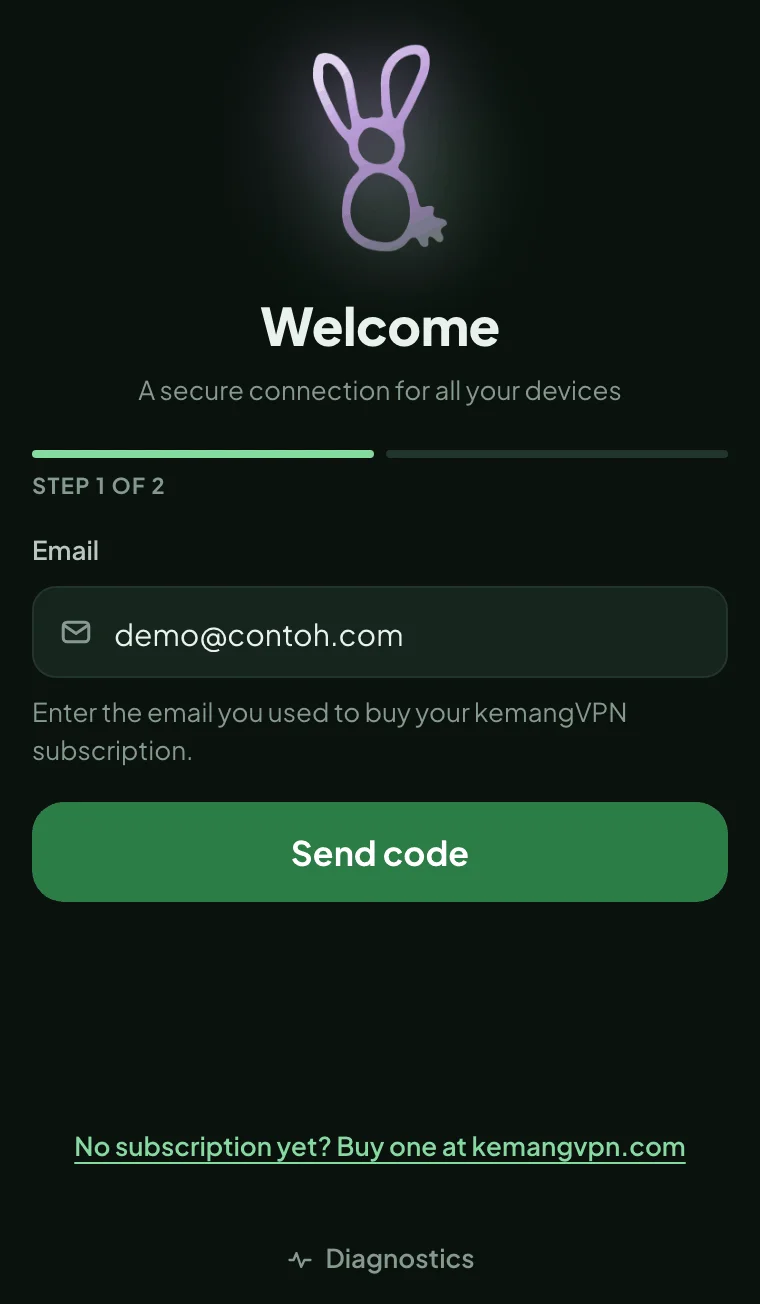
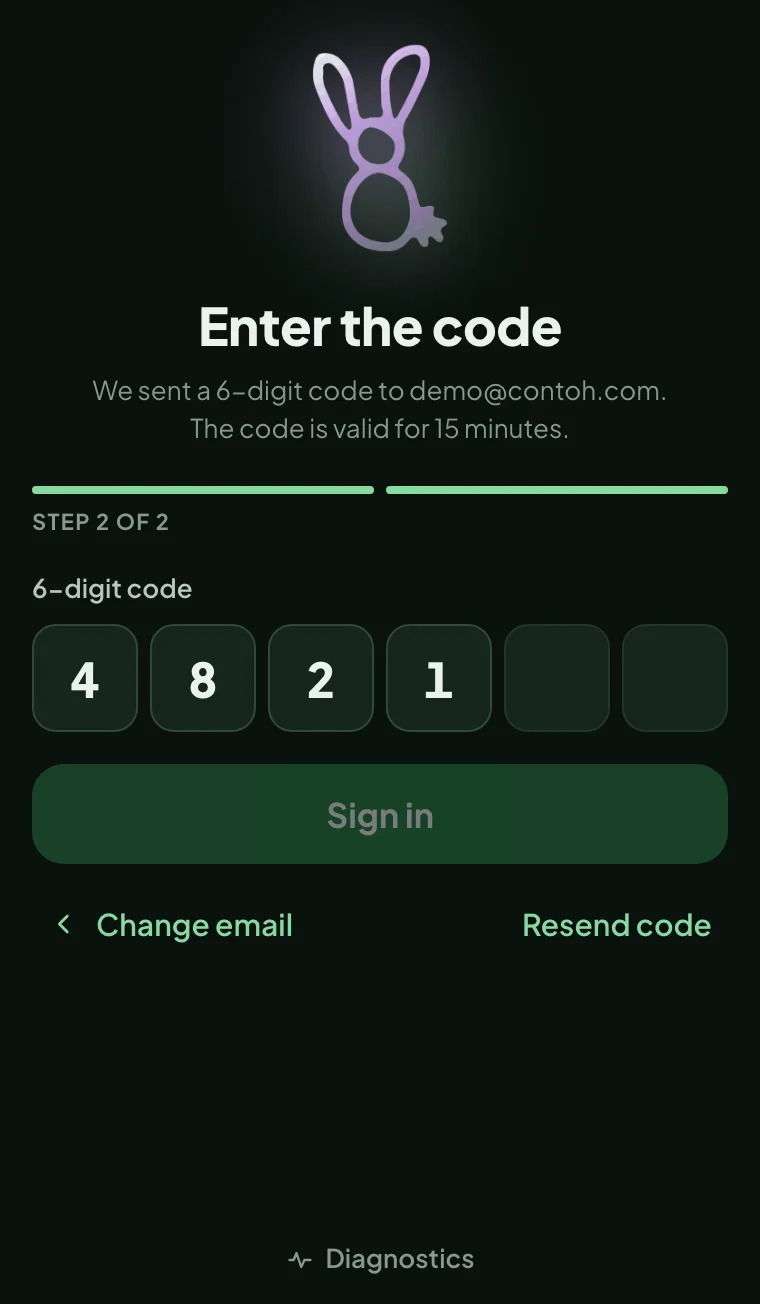
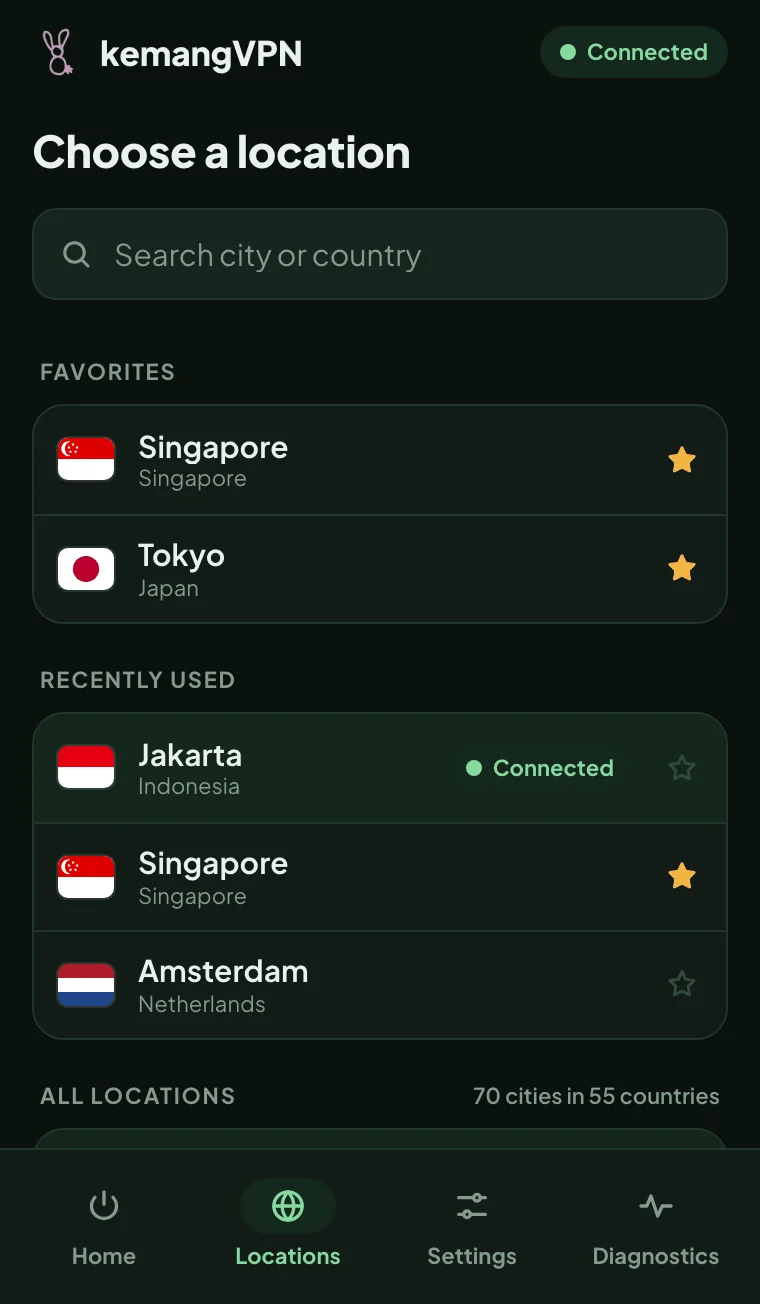
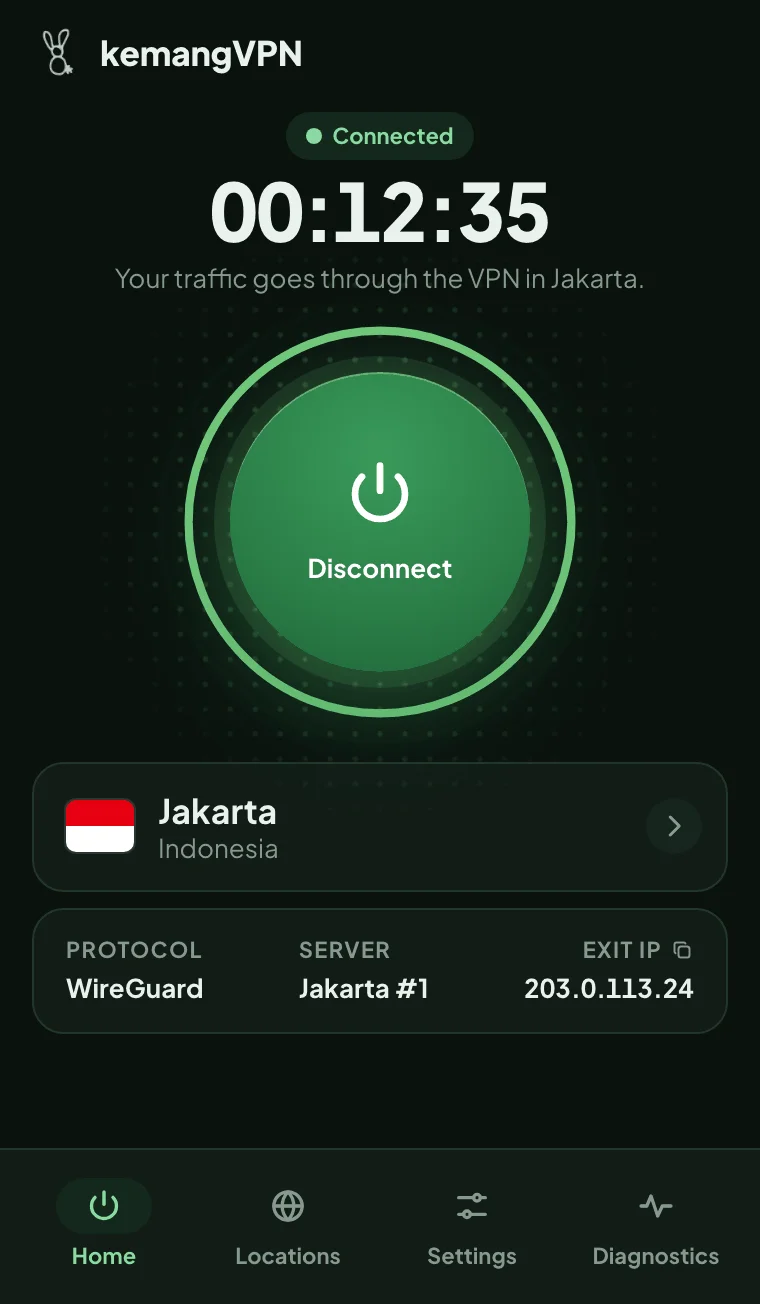
The pictures above are from the app on a Mac; it looks the same on Windows.
Tips:
- The app picks the server and protocol itself: WireGuard first, then IKEv2 or OpenVPN when needed. The protocol in use is shown on the main screen.
- While the VPN is connected, site name lookups (DNS) only go through the VPN, so they do not leak to the Wi-Fi or office network.
- Devices signed in to the app are listed in your account area, Devices. One account works on 10 devices connected at the same time.
- A new version is marked with a small dot on the bunny icon and an Update banner in the app. You can also install the new .msi over the old one; your account and settings stay.
- To remove the app: Settings, Apps, Installed apps, kemangVPN, then Uninstall.
- What the app sends is explained in the app privacy policy.
Alternatives
These other ways also work with the same kemangVPN account. They all sign in with your VPN username and password, not your email. They are sent by email when your service is activated and are also shown in your account area.
- VPNClient. The app from our server provider, for Windows 10 and 11. Download VPNClient for Windows, install it, sign in, pick a location, then click Switch ON. If it does not connect, change the protocol under Settings, Advanced tab.
- Manual setup on Windows 10 and 11, without an extra app: the steps are in Windows manual setup.
- Windows 7, 8 or Vista. The kemangVPN app and VPNClient cannot be installed there; use the Windows 7 manual setup.