 kemangVPN
 Tutorial with OpenVPN Connect
OpenVPN Connect is the official OpenVPN app and works as an alternative to the kemangVPN or VPNClient app on Android, iPhone and iPad, Windows, and Mac. On Mac and Linux, the easiest way is still the kemangVPN app.
1. Download the OpenVPN Connect app
- Android
- iPhone and iPad
- Windows
- Mac
- Linux: use the kemangVPN app, or your distro's built-in OpenVPN with the profile file below.
2. Download the server profile file (.ovpn)
Sign in to your account area, open Services, choose your service, then download the .ovpn file for the server you want from the Server list. Jakarta and Singapore are the closest to Indonesia. Your VPN username and password are shown on that service page too.
3. Import the profile and connect
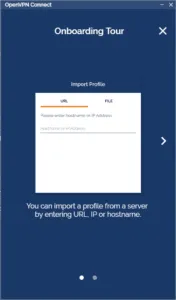
Install OpenVPN Connect, open it, and follow the first screens.
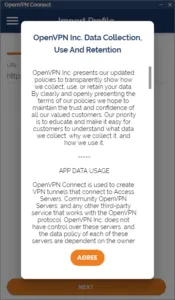
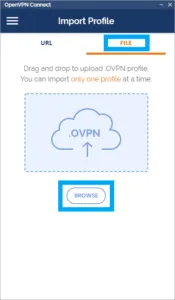
Choose the File tab, then Browse, and pick the .ovpn file you downloaded.
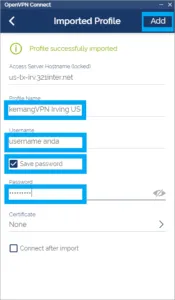
Change the Profile Name to match the server, for example "kemangVPN Jakarta". Enter your VPN username, tick Save Password, then enter your VPN password. Tap Add to save.
Tap the switch to turn on the VPN. If a Connection Error screen about the certificate appears, choose Continue.
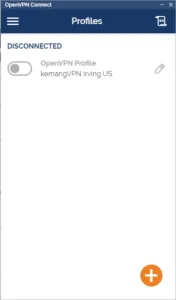
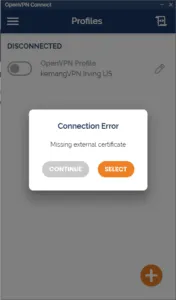
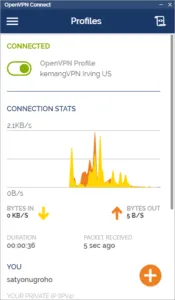
Once connected, use your device as usual.
Tips:
- Your VPN username and password are case sensitive; copy and paste them from the email to avoid typos.
- If it does not connect, pick a TCP port in the Server list, then download the .ovpn file for the same server again.