 kemangVPN
Step-by-step Android App Installation
Android Smartphone
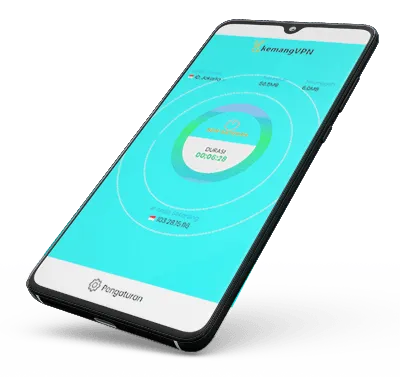
Android App Installation Tutorial
Download and install kemangVPN from the Google Play Store. Tap the Google Play button below:
Once the installation is done, open the VPNClient app. Select Settings.
Enter the username and password from your confirmation email (check your spam folder if needed).
Then tap Update
Next, select Choose Port(Optional) You can switch the protocol between UDP (for example 53 UDP) and TCP (for example 20 TCP).
For now, try selecting 20 TCP
Then tap the X button to close the Settings windowSelect the VPN server location you want to use in the top left corner. For example: ID, Jakarta
The closer the VPN server is to your current location, the faster your connection usually is.
Then close the Serverlist/Server Location window with the X button on the left.
Before turning on the VPN, it's a good idea to restart your smartphone first.
After restarting, open the VPNClient app again.Now you can connect by tapping the Switch On button in the middle.
If you're asked to allow a Connection Request, tap Ok.
Wait a moment until the connection is established.Once connected, you can keep using your smartphone as usual, for example opening the Netflix app or other apps through your browser.
As an alternative, you can also use the application OpenVPN Connect to make a VPN connection. Follow the settings guide here.